SSH Proxy
How to connect to your office workstation from home without wireguard or through Eduroam
It is possible to add a config for your ssh to connect to your office workstation. It uses a TELIN Linux host that is accessible through internet. Create or add this info to your .ssh/config (windows is .ssh\config) file:
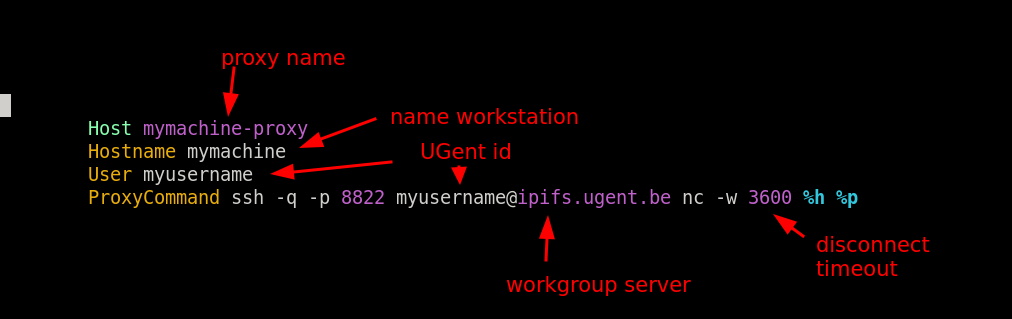
Replace your config with the red help arrow info. You can name the proxy name to have the same like your workstation name, but if you bring your home laptop on TELIN premises, the setup will not work! So, it is better to add a keyword like -proxy to your connection name.
Copy and paste this into the config and change it to your needs:
Host mymachine-proxy
Hostname mymachine
User myusername
ProxyCommand ssh -q -p 8822 myusername@ipifs.ugent.be nc -w 3600 %h %p
Connect
ssh mymachine-proxy
Replace mymachine with you workstation name.
If you don’t have ssh-keys, it will ask 2 times your password. The first is to connect to your workgroup server and the second to your workstation.
If you want to connect with the ssh keys, just add one, from your laptop at home:
ssh-copy-id -p 8822 myusername@ipifs.ugent.be
If it complains ssh-copy-id: ERROR: No identities found, that means you have to create it first:
ssh-keygen -t rsa -b 4096 -N ''
(type ENTER to accept the location)
The workgroup server should already contain the key to enter your workstation, but it you still need to type in a password, it means you have to repeat this, but on the workstation server itself.
ssh-copy-id myusername@mymachine
Windows users will have to use this:
type %HOMEPATH%\.ssh\id_rsa.pub | ssh myusername@mymachine "cat >> .ssh/authorized_keys"
File transfer
Once you have the proxy setup, you can also use this for file transfer
sftp mymachine-proxy
Use the get and put commands.
Mounting
Linux/MacOS
You can also mount a drive if your laptop is a Linux or MacOS https://macfuse.github.io/
mkdir ~/mnt
sshfs testpc3-proxy:Desktop ~/mnt/
Here we are mounting your Desktop directory onto a newly created local ~/mnt directory.
Windows
Windows users can use rclone to mount to a drive letter. See https://telin.ugent.be/telin-docs/windows/sftp-rclone/. The port is 22!
You should now be able to access your workstation directly without the need of wireguard. This should also work when you are on the Eduroam network.